
Ensure you are using the most up-to-date version of your recording app (e.g. GarageBand).
This article shows which products are compatible with any iPad Pro with a USB Type-C port. Please carefully read the support status and setup instructions for your specific product.
Scarlett 3rd/4th Gen Range
Update the firmware on your interface first, before connecting it to your iPad. See to this article for more information.
The following products are tested and supported with any iPads with a USB-C port:
- Scarlett Solo 3rd Gen
- Scarlett 2i2 3rd Gen
- Scarlett Solo 4th Gen
- Scarlett 2i2 4th Gen
- Scarlett 4i4 4th Gen
Follow this article for steps on how to connect these interfaces with your iPad.
The following products are not tested or supported with iPad Pro, but should work:
- Scarlett 4i4 3rd Gen
- Scarlett 8i6 3rd Gen
- Scarlett 18i8 3rd Gen
- Scarlett 18i20 3rd Gen
Check this article if your Scarlett 3rd Gen will no connect: My Scarlett 3rd Gen interface isn't working on my iPad.
You must connect all these devices to a computer to change routing and settings in Focusrite Control or Focusrite Control 2. The Focusrite Control mobile app (now discontinued) and Focusrite Control 2 mobile app cannot be used to control a Focusrite interface connected to your iPad — these app provide remote control for the Focusrite software on your desktop or laptop.
To connect these units, you can use a USB Type-C to C cable (not supplied), or an Apple USB-C to USB adaptor with the USB cable in the box.
Clarett USB and Clarett+ Ranges
- All the Clarett USB and Clarett+ interfaces work using a USB-C to C cable (included in the box).
- The 2Pre USB will NOT work, without mains power, as the iPad Pro USB ports are not powerful enough, as this article mentions.
You must connect all these devices to a computer to change routing and settings in Focusrite Control or Focusrite Control 2. The Focusrite Control mobile app (now discontinued) and Focusrite Control 2 mobile app cannot be used to control a Focusrite interface connected to your iPad — these app provide remote control for the Focusrite software on your desktop or laptop.
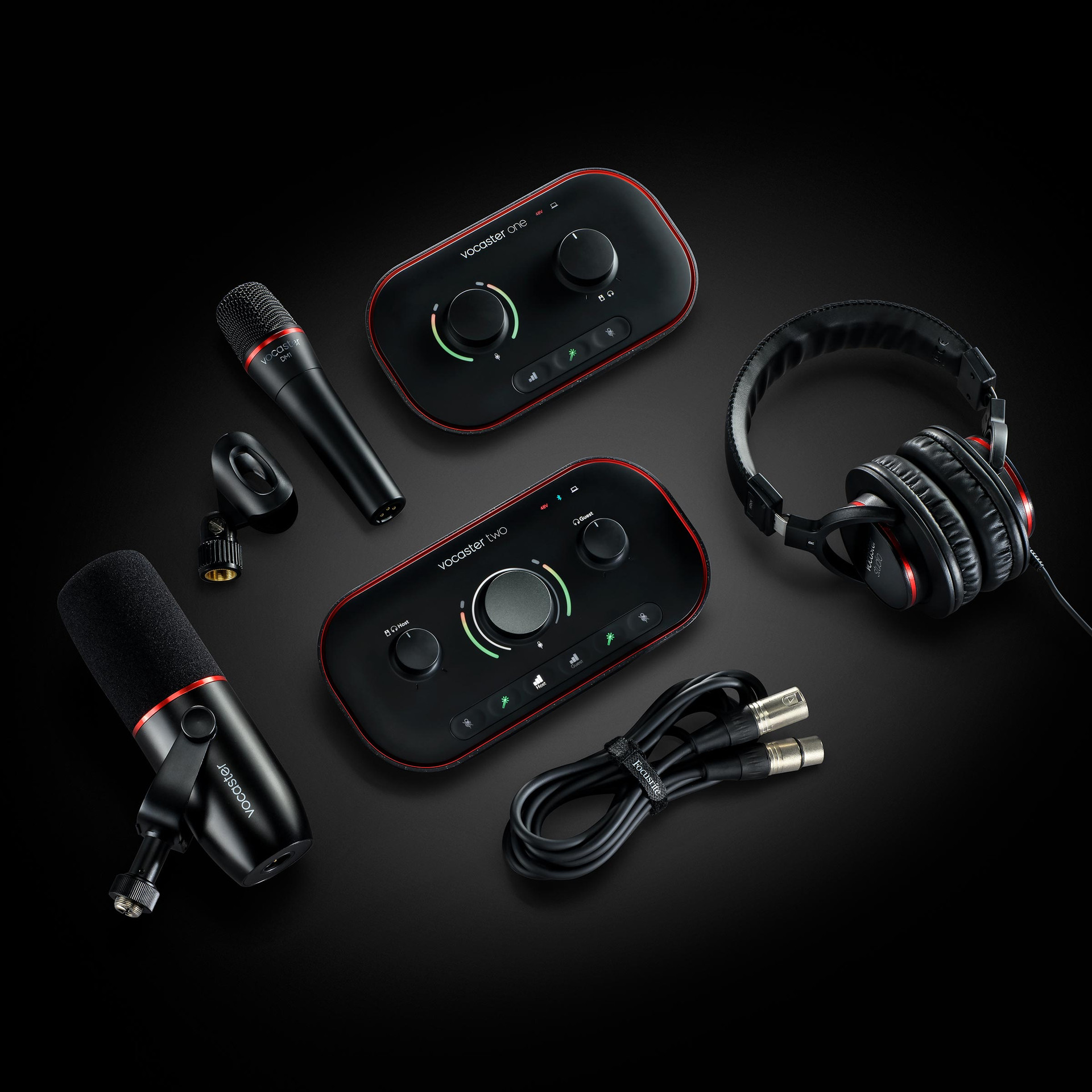
Vocaster Range
You must update the firmware on your interface first, before connecting it to an iPad. Refer to this article for more information.
- Vocaster One and Two are supported with USB-C iPads. To connect these units, you can use a USB Type-C to C cable (not supplied), or an Apple USB-C to USB adaptor with the USB cable in the box.
- Vocaster will need to be connected to a computer in order to change settings in Vocaster Hub.
- Follow this article for steps on how to connect these units with your iPad.
Scarlett 1st/2nd Gen Range
Bus-powered Interfaces (Solo, 2i2, 2i4):
- These interfaces are supported for use with the USB-C iPad Pro.
- To connect them, you will need to connect the Scarlett either with a C to C USB cable or A to C using the Apple USB-C to USB adaptor.
- The iPad Pro supplies enough power to bus power these interfaces, no external power/powered USB hub is required.
Mains Powered Interfaces (6i6, 18i8, 18i20):
- All the mains-powered Scarletts work, connecting either with a C to C USB cable or using the Apple USB-C to USB adaptor.
You must connect all these devices to a computer to change routing and settings in Focusrite Control, Focusrite Control 2, or Scarlett Mix Control. The Focusrite Control mobile app (now discontinued) and Focusrite Control 2 mobile app cannot be used to control a Focusrite interface connected to your iPad — these app provide remote control for the Focusrite software on your desktop or laptop.
Clarett Thunderbolt Range (2Pre, 4Pre, 8Pre, 8PreX)
- The Clarett Thunderbolt range will NOT work with USB ports and is not supported with the iPad Pro.
iTrack Range
- The iTrack Solo/One Pre interfaces are supported for use with the USB-C iPad Pro.
- The iTrack Dock interface is NOT supported
- To connect them, you will need the Apple USB-C to USB adaptor.
iTrack Solo:
- For this interface, you can disregard the Device Link cable and simply connect the USB B to A cable to the Apple USB-C to USB adaptor.
- The iPad Pro supplies enough power to bus power the iTrack Solo, no external power/powered USB hub is required.
iTrack One Pre:
- As there is no Lightning to USB adaptor, you will need to use a micro USB to USB A cable (not included but used with many phones/USB peripherals) and then connect this to the Apple USB-C to USB adaptor.
- The iPad Pro supplies enough power to bus power the iTrack Solo, no external power/powered USB hub is required.
iTrack Dock:
- This interface will NOT work with the iPad Pro, as it is only Lightning.
- Lightning to USB-C adaptor cables are not available from Apple, and we would advise against purchasing third-party cables as they are unlikely to work.