
You will need an Avid DigiLink I/O License to use a Red interface in conjunction with a Pro Tools HD/HDX/HD Native system.
To put the Red 4Pre/8Pre/8Line/16Line in Pro Tools Mode for connection to Pro Tools HD/HDX/HD Native systems, press the Meter and Monitor buttons simultaneously to enter the global settings menu. Under Host, change Thunderbolt to Pro Tools - the unit will then restart.
Alternatively, you can change the host mode using RedNet Control (if the Red is connected to a computer via Thunderbolt):
- Click the Tools icon
- Select the desired host mode from the “Device” tab:
The two Mini DigiLink ports on the rear of the Red 4Pre/8Pre/8Line/16Line transfer 32x32 channels to and from a Pro Tools HD/HDX/HD Native system. You'll see these inputs and outputs appear as blocks of 16 channels in the Pro Tools Setup > IO menu.
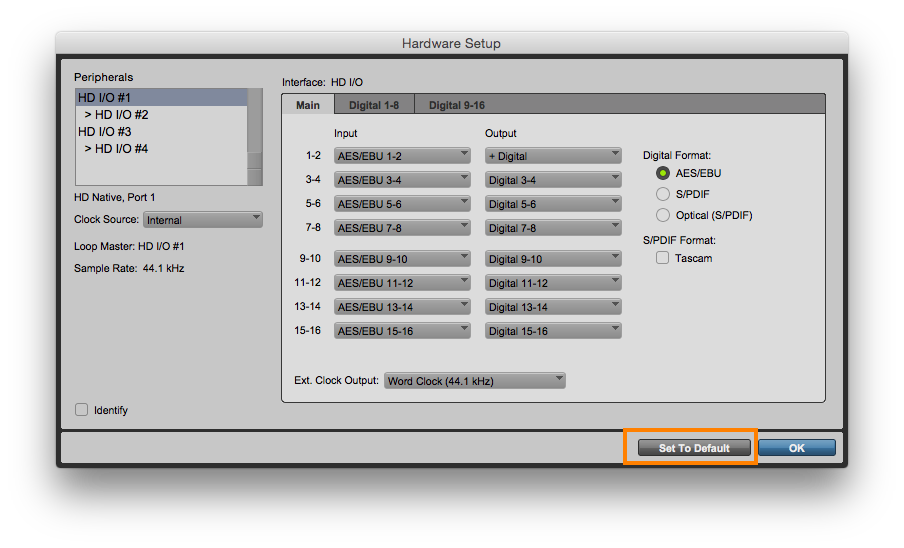
The Red will show in Pro Tools' Setup > Hardware window as four Avid HD IO units (or two if you're only using one of the Mini DigiLink connectors). By default, no settings need to be altered in this window.
If settings have been changed, simply select each HD IO from the left sidebar in turn and click 'Set to default'.
You can configure the order in which input channels on the Red are sent into Pro Tools using the Input Routing tab in RedNet Control (for more information, see this article).
You can configure which outputs on the Red correspond to the virtual outputs in Pro Tools using the Output Routing tab in RedNet Control.
All changes made in RedNet Control are automatically saved to the Red and are applied in both Thunderbolt and Pro Tools modes.